Showing posts with label How to. Show all posts

Timer in Google search

Do you need a timer for something like work, calling, picking up someone. Timer isn't convenient all the time, and all web apps aren't so helpful. Maybe, but it takes a lot of time. 

Ever wished there should be a timer in google search?  This comes true by typing a search query ( timer for <time> ). For example type "timer for 1 hour", you'll see a timer in search results below.When the timer expires browser plays an alarm


Via Lifehacker.com

How to open ISO file ??


A simple walkthrough to open an ISO files in a minute. If you had downloaded any Games online you might know that the file usually comes with an extension(.ISO). For others, that may befuddle mind and puzzle what was that??.  Simple, It is a virtual image file of an entire DVD or CD, and like an archive holds many installation files, for example ZIP, RAR etc. 

What to do with that ? How to open it ???...  . 

These files looks strange and causes confusion. However,there are many number of ways to open these files. Legitimate way is to burn in a disc with support of Burning softwares like NERO etc. If you want to directly run this file without burning ; you need the help of third party softwares like Virtual disc,Daemon tools, Winrar etc.

With Winrar :

To open with winrar Go to options > Settings > Integration > Check it ISO extension, like as shown in below picture.

Winrar Settings pane


With Daemon tools:


1.Download daemon tools

2.After installation, it creates a virtual drive in Devices list Called BD-ROM Drive.

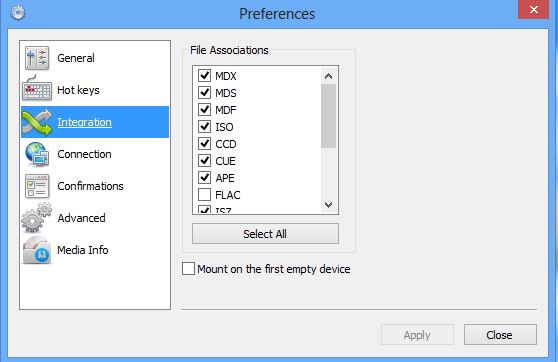
3.Now open Daemon tools, Go to preferences> Integration > check ISO extension and save it .


4.Then right click on iso file > open with > Click Daemon tools and save it . 

Basic guide to troubleshoot your smartphone( Android, iOS, Windows, Blackberry)

For IOS

When :

Did you ever seen the phones crashing again and again, restarting periodically, and the device is processing low than as usual. This makes us irritate a lot. 

Whenever we face this situation, the common thing we do is "Restarting". However, this may solve the issue, to do press Power button for few seconds > Slide to power off. Well, but if the problem persists again, that has to be solved in other way.

In this post i'll show you the complete process to troubleshoot your varied smartphones.

For iPhone:
iPhone Model


  1. First on safe side backup all your contacts and data to other disk.
  2. If your phone is running slow, try to roll back changes by resetting your phone to do this Go to Menu > settings > Reset  > Reset all settings
  3. If your phone has a major problem i.e restarting frequently, crashing when opening an app, etc. Then Select Erase all Content and Settings under Reset menu shown above.
  4. If your Phone isn't starting, or it is frozen then you try hard reset. To do this Press and hold Power button and Home button for 10 sec > your phone reboots now
  5. After rebooting connect your phone to PC > Open iTunes > See your phone listed in Recognized devices. 


If it doesn't recognize then Do the process again correctly from 1 to 4.

In iTunes> Click update your phone.

Done.

Credit : Youtube


Windows Phone:
Windows Phone

When

After it's initial release with Nokia Corp it made a huge success, many of them were attracted by its interface. While windows decided a minimum requirements for every phone; results fast and stable. Though this phone may hang up or slow down, due to virus effect. If your phone does try these steps to reset factory settings.

1. Backup your data and restart your phone, it may boost your OS and removes cache.

2. If it is still slow, reset your phone. To do Settings > About > Reset your phone > Confirm yes. After 15 Mins phone restarts automatically.

3. If your phone isn't starting or hanging up. Try these settings below.

For Nokia Lumia windows phone 8:

1. Switch off the phone.

2. Press and hold the volume down button and connect the charger. Now make sure exclamation mark appears on the screen.

3. Now Press the keys in order Volume Up > Volume down > Power > Volume down.

4. Phone will reset to original settings, as it should.

For Nokia Lumia windows phone 7:

1 . Switch off the phone.

2 . Press down Volume down, Camera button, and Power key.

3. Notice your phone vibrates , and now release only the power key.

4. After the phone reboots, release the Volume down and camera button.

5. That's it.


Android:

Like I said above , sometimes a simple restarting method can cure your android platform easy. But in bad time that won't work too. Android is most common operating system installed in many of smartphones, and gadgets. Every company develops a varients of android console on its smartphones. 

1. You can reset your phone to default in easy way, if it is responsive. To do this Navigate to Settings > Backup & Reset > Factory data reset > Reset Phone. Don't forget to backup before doing reset, because it deletes all your data completely.

2. If your phone is unresponsive, try a hard reset by pressing Volume Up + Power + Home button for 10 secs.

3. Switch to options available by pressing Volume Up and Volume down buttons, select Factory reset option and select ok . 

4. Wait for a few minutes and look back. It's done.


JoliDrive - One account for all drives


Today many people are bothered about their storage and privacy in online, because there are multiple of services and as well as multiple of conditions also. In the first priority, our concern goes to cloud storage, which made to incline our needs easily. Jolicloud is a family of jolidrive and joliOS are a file organisers of stuff like photos,videos,documents and so on, sits them in the right place automatically.You may view, modify and delete a file or files in one interface. This Jolidrive gives easy access to all the cloud storage files by combining all accounts at one place, accessible from the sidebar.

The files in your cloud accounts like Skydrive, Instagram, Flickr, Google Drive, Dropbox, Soundcloud, all are automatically organised into a category for best User experience. The files are can be viewed and play songs without downloading on the same screen. JoliDrive is free to use, offers a fantastic interface and awesome services that you might not seen up to now.


Waiting still? Move on to Jolicloud now here

Music Player for Google Drive


Google drive the most populous cloud storage service amid other Cloud storage services
By offering 10GB of free storage and tools keeps them as top most preferable service with integrated office tools and many services. Now music files can be played right in chrome streams from Google drive. It is simple add-on for chrome to play music files like other plugins


This app can play Mp3,Mp4,OGG,WAV,ACC and webm formats.After adding add-on in chrome it prompts you to add the audio files from Google drive and select your favorite music files and press play. With this pretty simple extension No matter how many you add music to your playlist it keeps on playing within chrome.


Download music player for Google Drive

Related Posts 

Plugin for WordPress, Blogger...